Jobs & Dashboard
The dashboard is your central command for all cleaning jobs. View upcoming cleanings, check confirmation status, reassign jobs, and track everything in one place.
What is a job?
A "job" in TurnoverPing represents a single cleaning task. Each job is tied to a booking checkout date and includes:
- Date – The checkout date when cleaning is needed
- Time window – From checkout time to check-in time
- Property – Which rental needs to be cleaned
- Assigned cleaner – Who is responsible for the cleaning
- Status – Pending, Confirmed, Declined, Done, or Cancelled
Dashboard views
The dashboard offers two ways to view your jobs:
📋 List View
A chronological list of jobs. Best for quickly scanning upcoming work and checking status at a glance.
- • See job status with color-coded badges
- • Quick actions for each job
- • Easy filtering and sorting
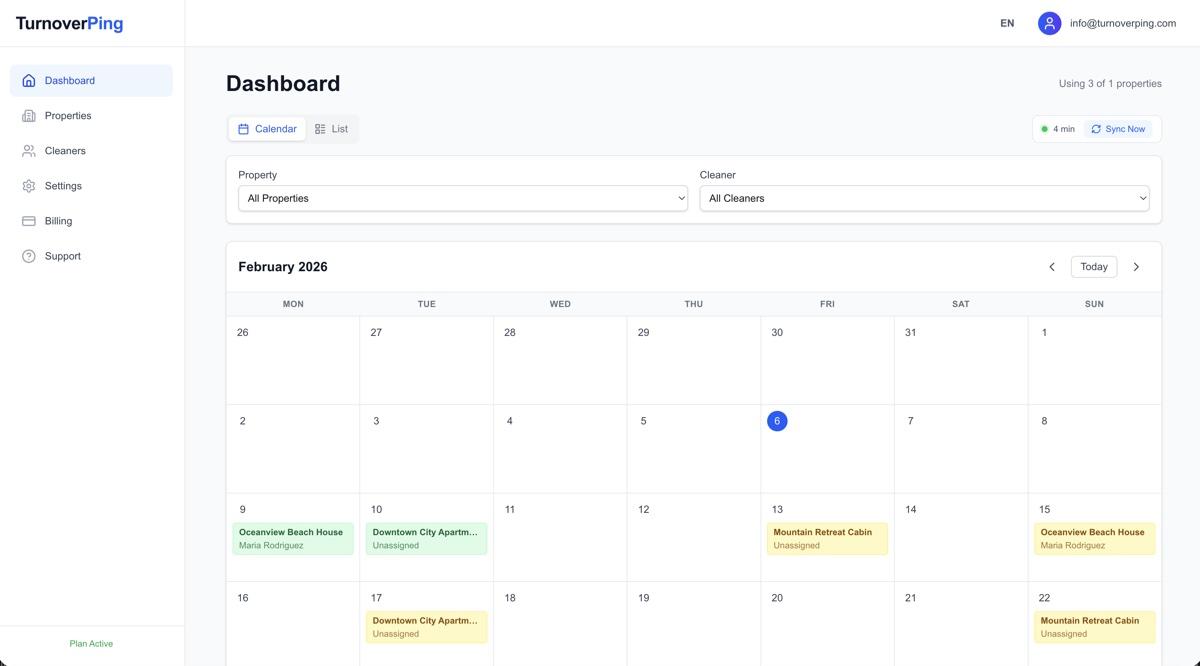
📅 Calendar View
A monthly calendar showing jobs by date. Best for visualizing your cleaning schedule over time.
- • See busy days at a glance
- • Click any day to see jobs
- • Navigate months easily
Job status explained
Job has been created. Cleaner has been notified but hasn't responded yet.
Cleaner has accepted the job. They'll receive a reminder on the day.
Cleaner cannot do this job. If you have a backup cleaner, they'll be notified automatically.
Job was manually assigned by you. Cleaner was notified.
Past job that was completed (happens automatically after the job date).
The booking was cancelled or you cancelled the job manually.
Filtering jobs
Use the filters above the job list to find specific jobs:
Date Range
- • Today – Jobs scheduled for today only
- • Next 7 Days – Upcoming week's jobs
- • All Upcoming – All future jobs
- • Past Jobs – Completed jobs (last 30 days)
Property
Filter to see jobs for a specific property only.
Cleaner
Filter to see jobs assigned to a specific cleaner.
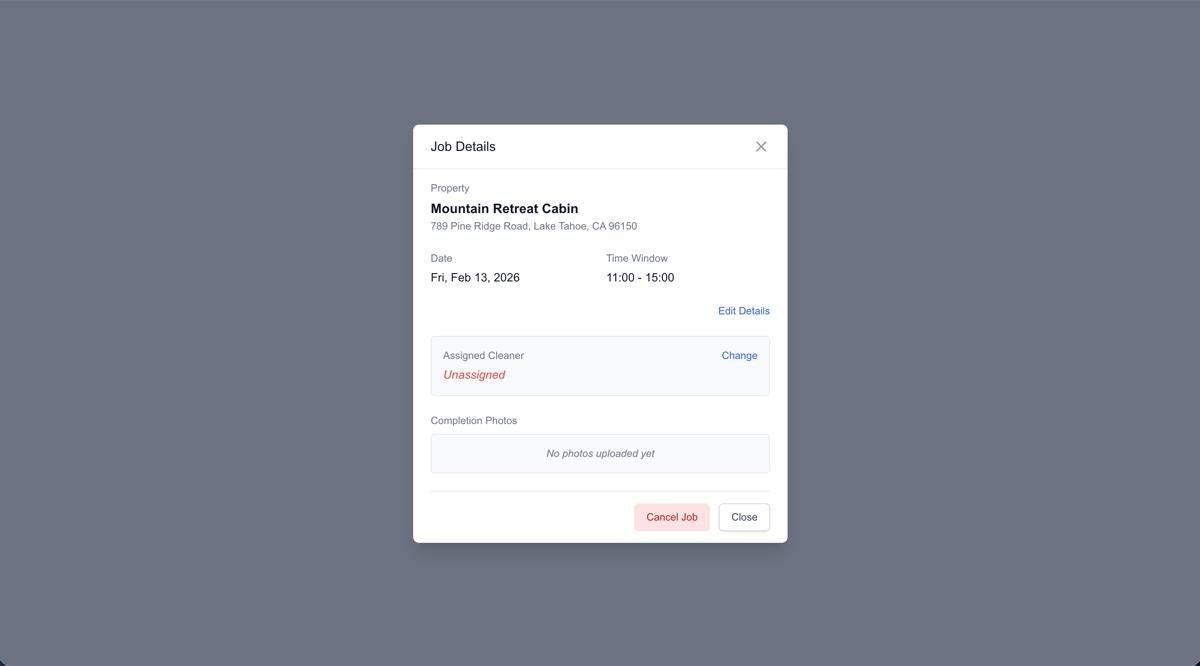
Viewing and editing job details
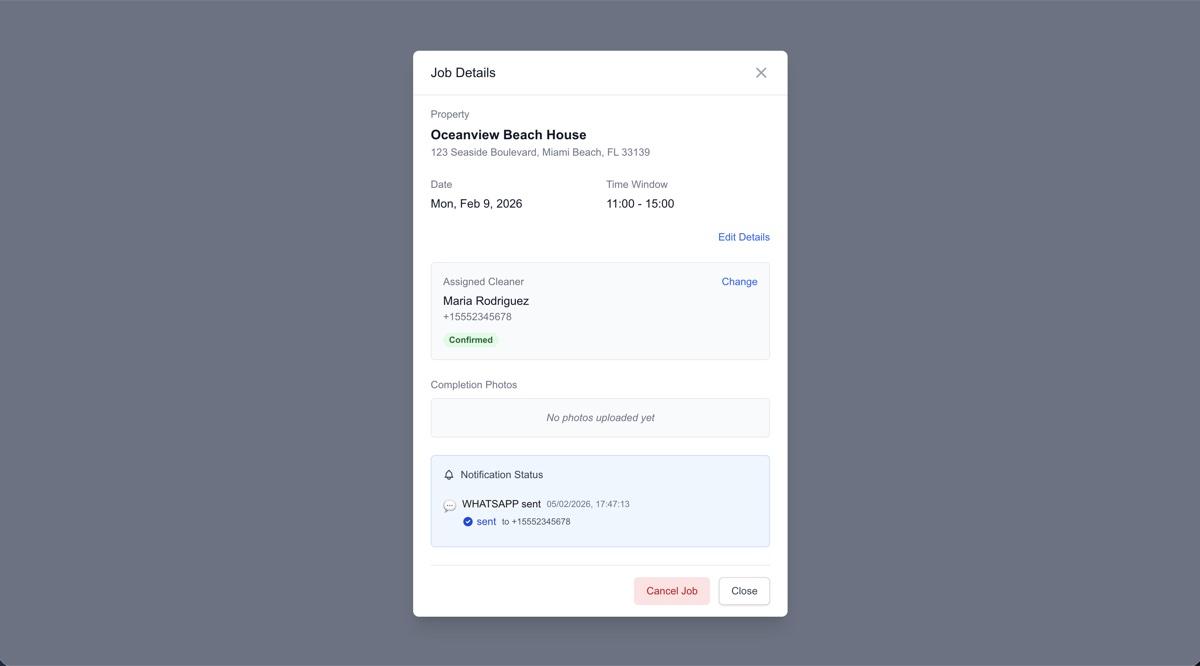
Click any job to open its detail view. Here you can:
- 👤
Change assigned cleaner
Reassign to a different cleaner. They'll be notified of the assignment.
- 🕐
Adjust time window
Change the start and end times for this specific job.
- 📬
View notification status
See if the notification was delivered and when the cleaner responded.
- 📸
View completion photos
See photos the cleaner uploaded after completing the job.
Unassigned Job
Confirmed Job
Reassigning a job
If you need to change who's handling a job:
- 1Open the job details by clicking on it
- 2Find the "Assigned Cleaner" dropdown
- 3Select a different cleaner from the list
- 4Confirm the reassignment
What happens when you reassign?
- • The new cleaner receives a job notification
- • The previous cleaner receives a cancellation notice
- • Job status resets to "Pending" until the new cleaner confirms
Cancelling a job
You can manually cancel a job if it's no longer needed. This is different from when a booking is cancelled (which happens automatically).
To cancel a job:
- 1. Open the job details
- 2. Click "Cancel Job" at the bottom
- 3. Confirm the cancellation
The assigned cleaner will be notified that the job is cancelled.
Sync Pulse
At the top of your dashboard, you'll see Sync Pulse showing when your calendars were last checked.
- • Last Synced: When TurnoverPing last checked your calendars
- • Sync Now: Manually trigger a calendar check
- • Calendars are automatically checked every 15 minutes
Frequently Asked Questions
Why is my job showing as "Pending"?
The cleaner has been notified but hasn't confirmed yet. Give them time to respond, or check if their contact information is correct.
A cleaner declined. What happens now?
If you have a backup cleaner set for the property, they'll be notified automatically. Otherwise, you can manually reassign the job to another cleaner.
Can I see past jobs?
Yes! Use the date range filter and select "Past Jobs" to view completed jobs from the last 30 days.