Getting Started with TurnoverPing
Set up automated cleaning notifications for your vacation rental in just a few minutes. This guide will walk you through the complete onboarding process.
What you'll accomplish
- Connect your Airbnb, VRBO, or Booking.com calendar
- Set up your first property with checkout/check-in times
- Add your cleaner with their preferred notification method
- Start receiving automatic cleaning job notifications
Before you begin
Make sure you have the following ready:
Calendar URL
Your iCal export URL from Airbnb, VRBO, or Booking.com.Learn how to find it →
Cleaner contact info
Your cleaner's phone number (for SMS/WhatsApp) or email address.
Step-by-step setup
Create your account
~1 minSign up for a free 14-day trial. No credit card required.
- Enter your email and create a password
- Confirm your timezone (auto-detected)
- Verify your email address
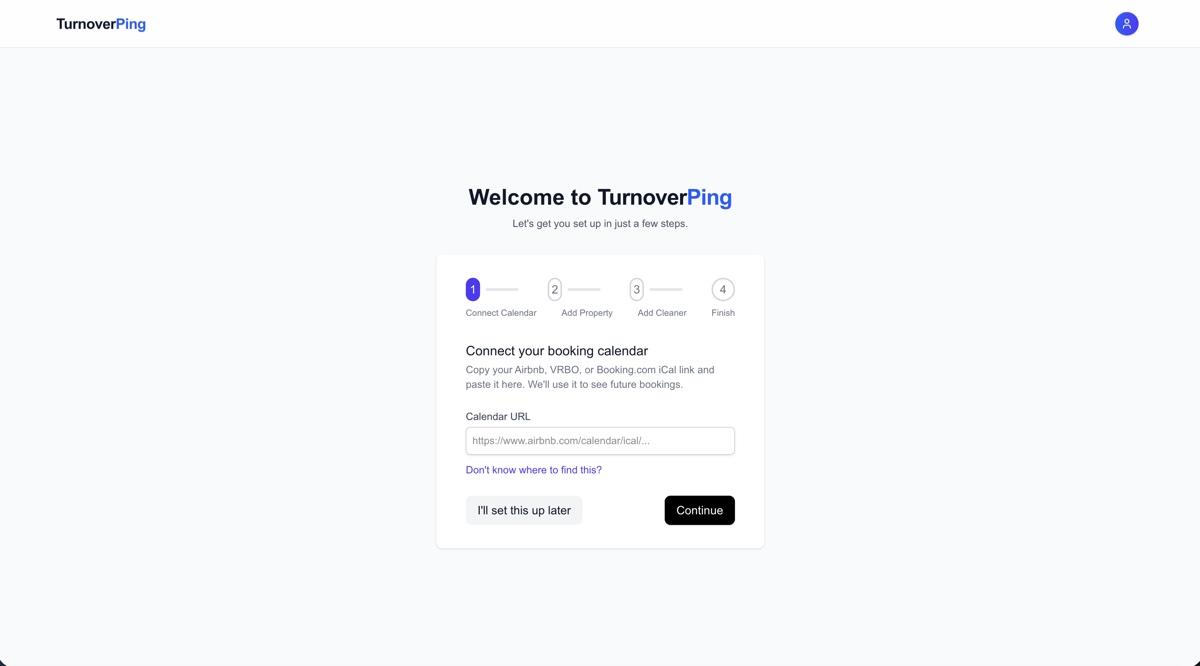
Connect your calendar
~2 minPaste your Airbnb, VRBO, or Booking.com iCal URL.
- Copy the iCal export URL from your booking platform
- Paste it into TurnoverPing during onboarding
- We'll automatically detect all upcoming bookings
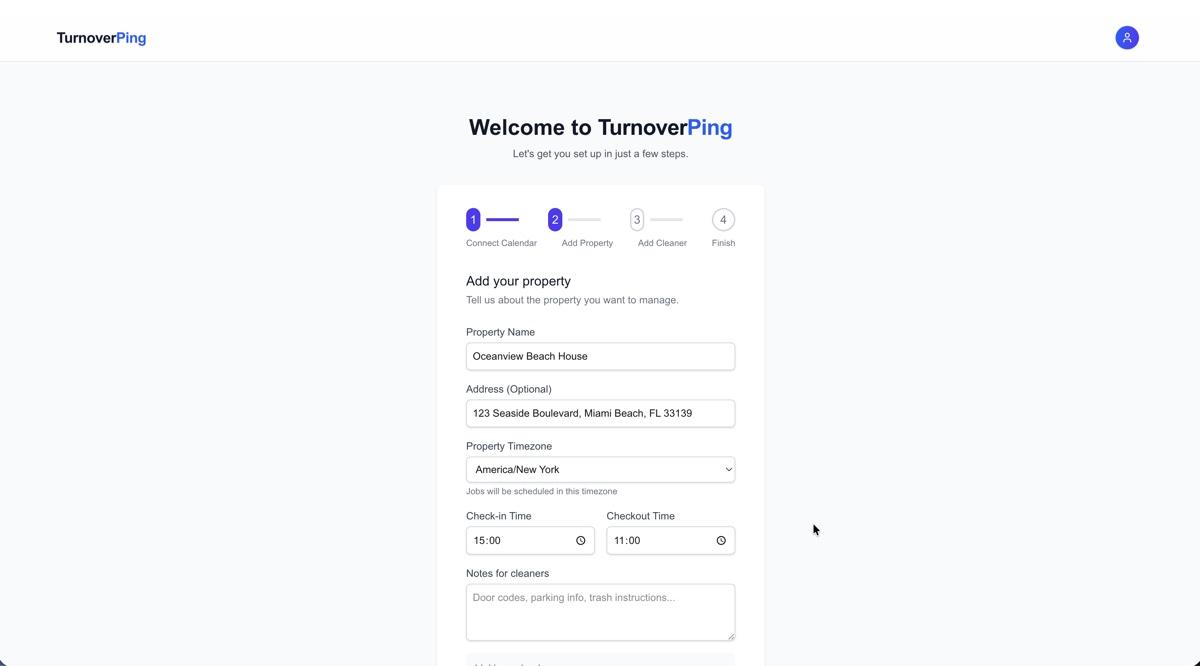
Add your property
~1 minName your property and set checkout/check-in times.
- Enter your property name and address
- Set default checkout time (e.g., 11:00 AM)
- Set default check-in time (e.g., 3:00 PM)
- Add any notes for your cleaners (door codes, special instructions)
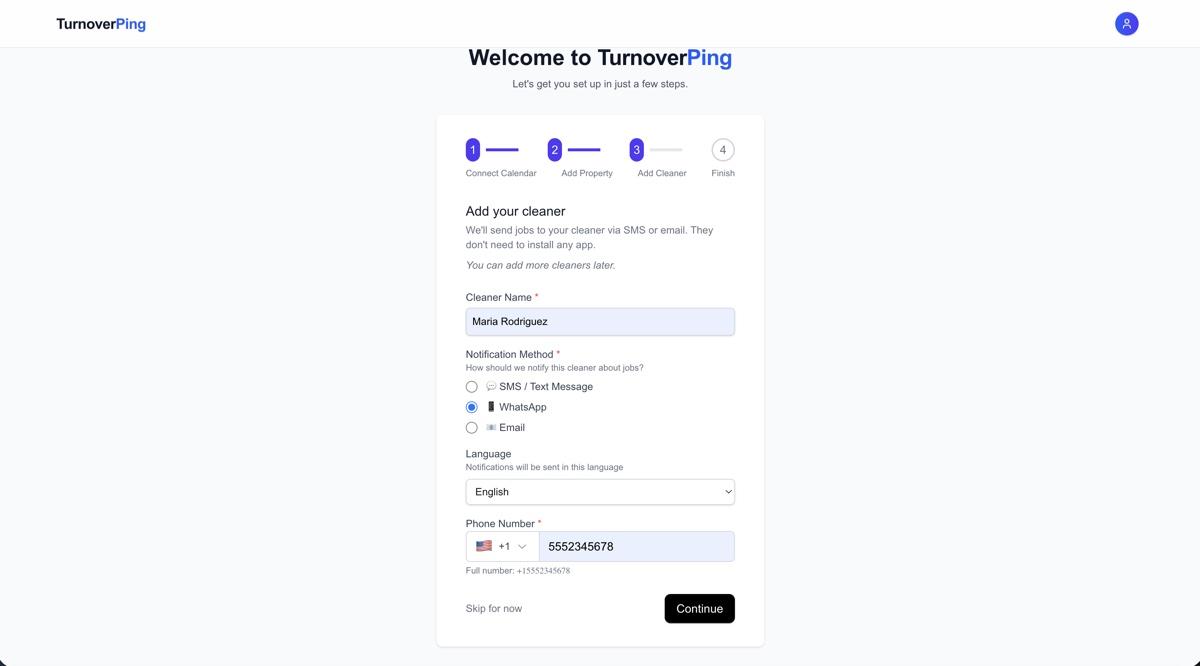
Add your cleaner
~1 minAdd your cleaner's contact info and notification preference.
- Enter your cleaner's name
- Choose their notification method: SMS, WhatsApp, or Email
- Enter their phone number or email address
- Select their preferred language (English or Italian)
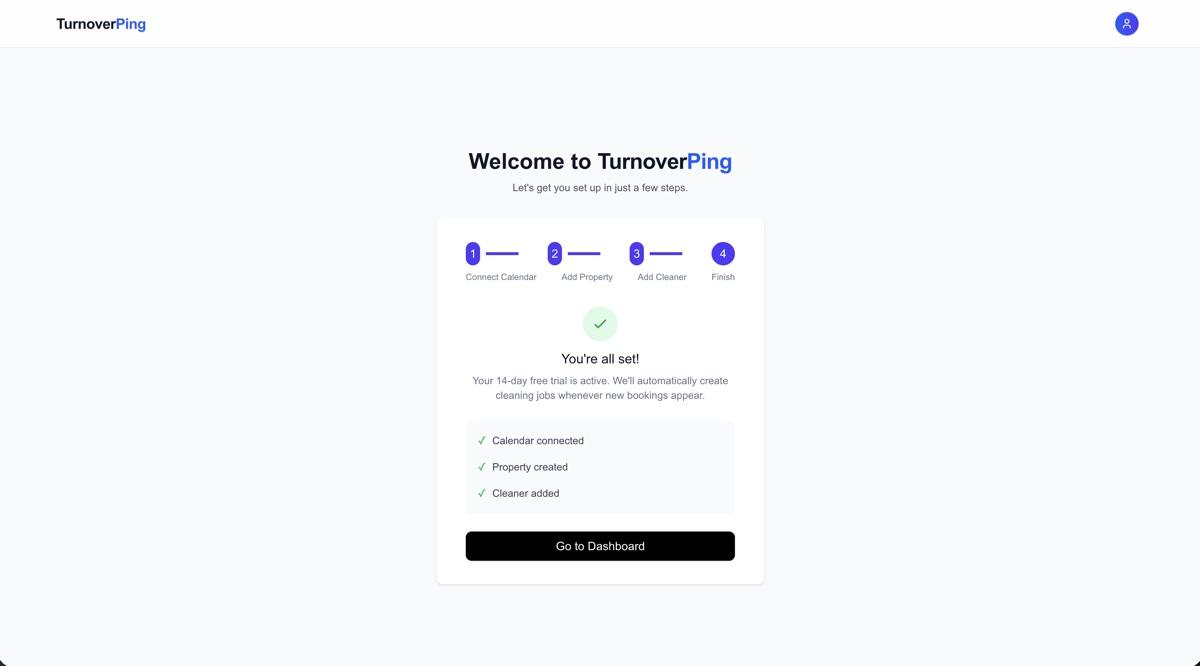
What happens after setup?
Once you complete the onboarding, TurnoverPing starts working automatically:
- 1TurnoverPing syncs your calendar every 15 minutes
- 2When a new booking is detected, a cleaning job is automatically created
- 3Your cleaner receives a notification with job details
- 4They reply "OK" or click "Accept" to confirm
- 5You see confirmation status in your dashboard
- 6Cleaners get a daily morning summary of their jobs
Setup Complete
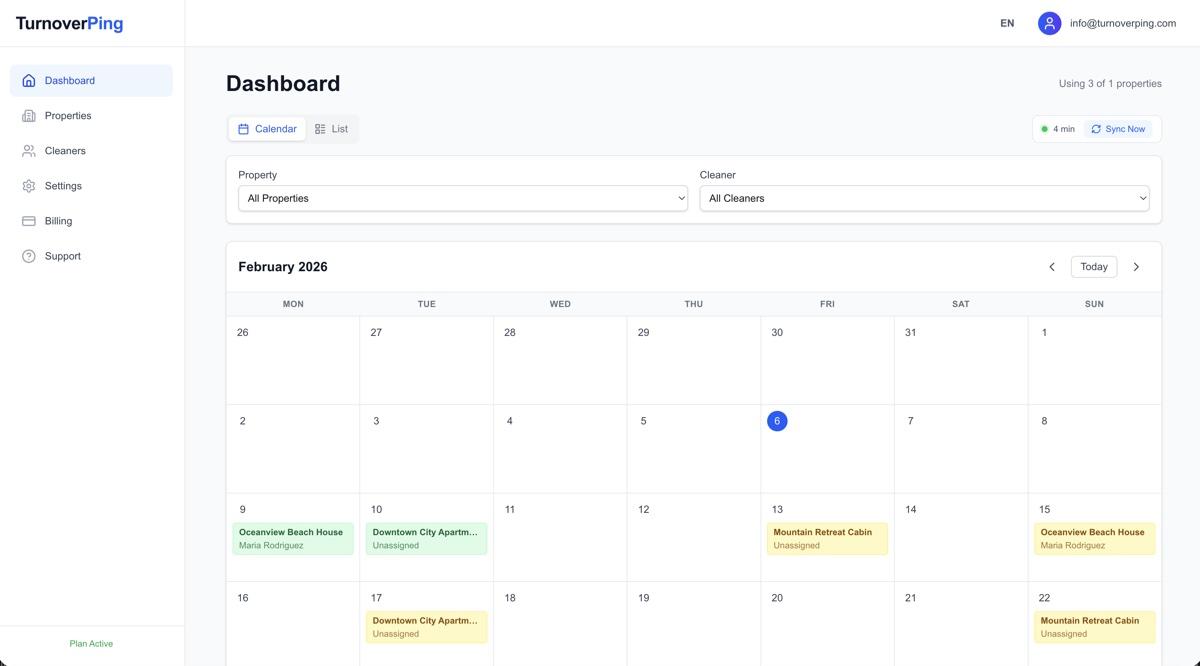
Your Dashboard
After setup, you'll see your dashboard with all imported bookings displayed as cleaning jobs:
💡 Pro tips
- Add a backup cleaner – If your primary cleaner declines, the job automatically goes to your backup. Learn more
- Enable photo uploads – Let cleaners submit verification photos when they complete a job. Learn more
- Use WhatsApp for international cleaners – SMS is only available for US/Canada numbers. WhatsApp works worldwide.
Next steps
Ready to get started?
Create your free account and set up your first property in 60 seconds.
Start Free Trial