Managing Properties
Properties in TurnoverPing represent your rental listings. Each property can have its own calendar connections, default cleaner, and specific settings like checkout times and cleaning notes.
What is a property?
A property in TurnoverPing corresponds to a single rental unit. It could be an apartment, house, room, or any space you rent out. Each property has:
- Calendar connections – linked to Airbnb, VRBO, or Booking.com
- Default cleaner – automatically assigned to new jobs
- Backup cleaner – assigned if the default cleaner declines
- Checkout/check-in times – defines the cleaning window
- Notes – special instructions sent to cleaners (door codes, etc.)
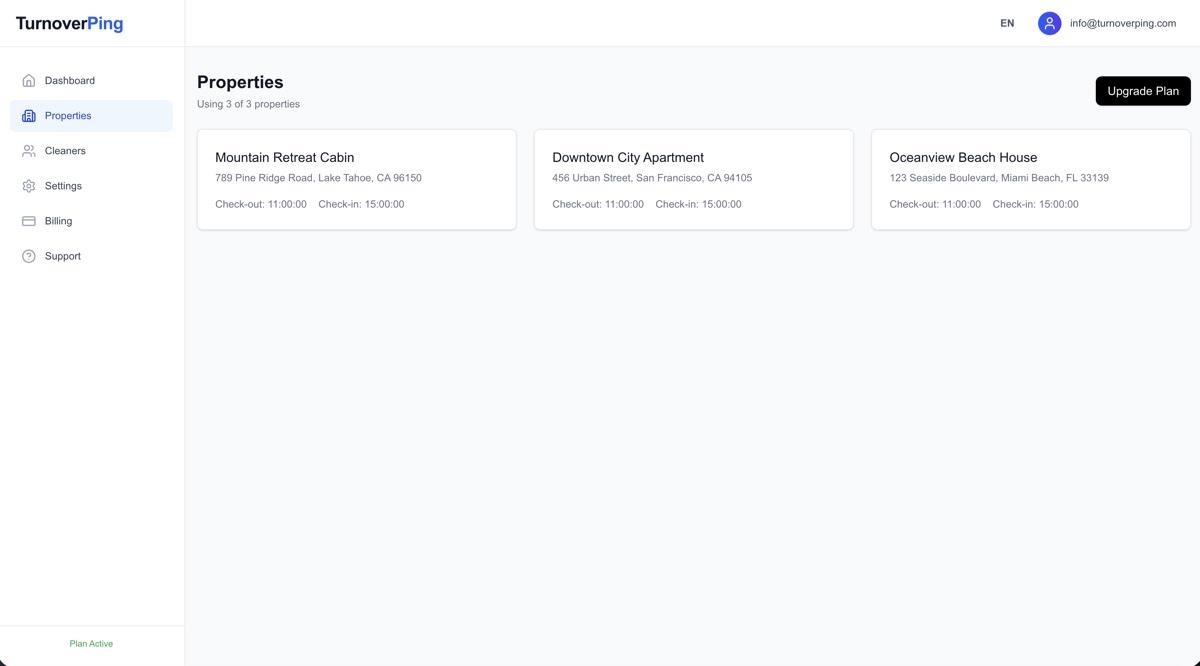
Adding a new property
You can add properties during onboarding or anytime from the Properties page.
Steps to add a property:
- 1
Go to Properties
Navigate to the Properties page from the sidebar menu.
- 2
Click "Add Property"
The button is at the top of the properties list.
- 3
Enter property details
Name, address (optional), timezone, checkout/check-in times.
- 4
Add calendar URL (optional)
Paste your iCal URL from Airbnb, VRBO, or Booking.com. Learn how to find it →
- 5
Save the property
Your property is now ready to receive jobs.
Property settings explained
Property Name
A friendly name to identify your property (e.g., "Beach House" or "Downtown Apt 2B"). This name is shown to cleaners in their notifications.
Address
Optional. The physical address of the property. Shown to cleaners in job notifications so they know where to go.
Timezone
The timezone where the property is located. All job times are displayed in this timezone. Auto-detected during setup but can be changed.
Checkout Time
The time guests check out (e.g., 11:00 AM). This is the start of the cleaning window shown to cleaners.
Check-in Time
The time guests check in (e.g., 3:00 PM). This is the end of the cleaning window. Cleaners must complete the job before this time.
Notes for Cleaners
Special instructions included in every job notification for this property. Great for:
- • Door codes and lockbox combinations
- • Parking instructions
- • Trash day reminders
- • Special cleaning requirements
Assigning cleaners to properties
Each property can have a default cleaner and an optional backup cleaner.
Default Cleaner
The cleaner who automatically receives job notifications for this property. When a new booking is detected, they get notified first.
Backup Cleaner
If the default cleaner declines a job, it's automatically reassigned to the backup.Learn more about auto-reassignment →
To assign cleaners:
- 1. Open the property details page
- 2. Find the "Default Cleaner" dropdown
- 3. Select a cleaner from your list
- 4. Optionally, select a "Backup Cleaner"
- 5. Click "Save Changes"
Calendar connections
Each property can have multiple calendar connections. This is useful if you list the same property on multiple platforms (e.g., Airbnb and VRBO).
Managing calendars:
- +Add calendar: Paste a new iCal URL to connect another booking source
- ×Remove calendar: Disconnect a calendar (existing bookings become orphaned)
- ↻Sync status: View when the calendar was last synced and any errors
Deleting a property
⚠️ Warning: This is permanent
Deleting a property removes:
- • The property itself
- • All connected calendars
- • All bookings associated with the property
- • All cleaning jobs for the property
This action cannot be undone. Your subscription capacity will be reduced accordingly.
To delete a property:
- 1. Open the property details page
- 2. Scroll to the "Danger Zone" section at the bottom
- 3. Click "Delete Property"
- 4. Confirm the deletion in the popup
Frequently Asked Questions
How many properties can I add?
This depends on your subscription plan. You can easily add more properties by upgrading your plan capacity at any time.
Can I have multiple calendars per property?
Yes! If you list the same property on Airbnb and VRBO, you can connect both calendars. TurnoverPing will detect bookings from all connected sources.
What happens if I don't assign a default cleaner?
Jobs will be created but marked as "Unassigned." You can manually assign a cleaner from the dashboard. No automatic notifications will be sent until you assign someone.