Notifications
TurnoverPing automatically notifies your cleaners when jobs are created, updated, or cancelled. Cleaners receive messages via their preferred channel: SMS, WhatsApp, or email.
Types of notifications
🆕 New job notification
Sent when a new cleaning job is assigned to a cleaner. Includes property name, date, time window, address, and any special notes.
📝 Job update notification
Sent when a job's date or details change (e.g., guest changed booking dates). Cleaner is informed of the new information.
❌ Job cancellation
Sent when a job is cancelled (booking cancelled or manual cancellation).
🌅 Daily summary
Morning message listing all of a cleaner's jobs for the day. Sent at the time you configure in Settings. Learn more →
🔔 Pending job reminder
If a cleaner hasn't confirmed a job, they'll receive a reminder to respond.
Notification channels
SMS (Text Message)
Standard text messages delivered to the cleaner's phone.
🧹 New cleaning job!
Beach House
Dec 15, 11:00 AM - 3:00 PM
123 Ocean Ave
Reply OK 4521 to confirm
Reply NO 4521 to decline
Note: SMS is only available for US and Canadian phone numbers (+1). For international numbers, use WhatsApp or Email.
WhatsApp messages with interactive buttons for easy confirmation.
🧹 New cleaning job!
Beach House
📅 December 15, 2024
⏰ 11:00 AM - 3:00 PM
📍 123 Ocean Ave
Recommended because cleaners can tap buttons to respond. Works worldwide with any phone number.
HTML emails with large, clickable Accept/Decline buttons.
🧹 New Cleaning Job
Property: Beach House
Date: December 15, 2024
Time: 11:00 AM - 3:00 PM
Address: 123 Ocean Ave
When notifications are sent
New job notifications
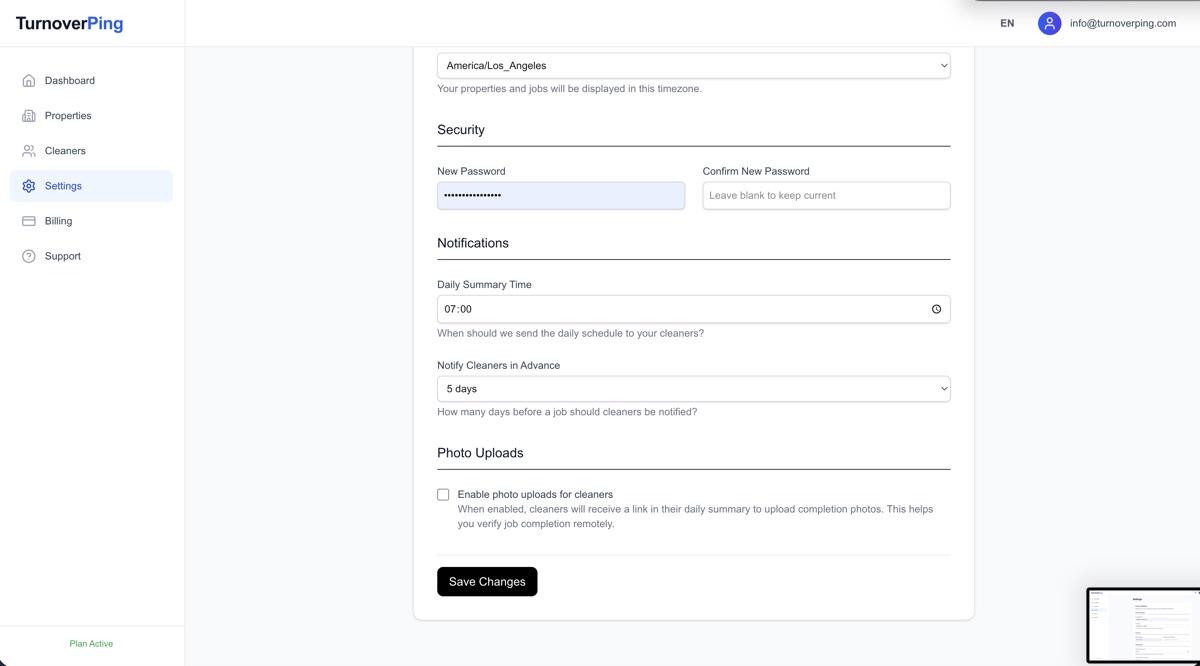
Sent based on your "Notify Cleaners in Advance" setting. Default is 1 day before the job date. You can configure this in Settings.
Daily summaries
Sent at the time you configure in Settings. Default is 7:00 AM in the property's timezone.
Updates and cancellations
Sent immediately when a change is detected or you make a manual change.
Tracking delivery status
In the job details view, you can see the notification status:
Delivered
The message was successfully delivered to the cleaner.
Pending
The message is queued and will be sent soon.
Failed
Delivery failed. Check the cleaner's contact information or verification status.
How cleaners respond
Cleaners confirm or decline jobs in different ways depending on their notification channel:
| Channel | To Accept | To Decline |
|---|---|---|
| SMS | Reply OK 1234 | Reply NO 1234 |
| Tap Accept button or reply OK | Tap Decline button or reply NO | |
| Click Accept Job button | Click Decline Job button |
Notifications for hosts
As a host, you also receive notifications:
- Daily summary email – Overview of today's jobs and their status
- Photo upload notification – When a cleaner submits completion photos
- Job declined alert – When a cleaner declines and no backup is available
Troubleshooting
Cleaner says they didn't receive the message
- • Check their verification status on the Cleaners page
- • Verify the phone number includes the correct country code
- • For SMS, confirm they're using a US or Canadian number
- • Ask them to check their spam folder (for email)
Notification shows "Failed"
- • The phone number or email may be invalid
- • The cleaner may have blocked messages
- • For WhatsApp, ensure they have an active WhatsApp account
- • Try resending the verification or updating their contact info
Cleaner responded but status didn't update
- • They may have replied incorrectly (e.g., missing job code for SMS)
- • Check if they replied to the correct message thread
- • Refresh the page to see the latest status