Managing Cleaners
Cleaners in TurnoverPing receive job notifications via SMS, WhatsApp, or email. They don't need to download any app or create an account. They simply receive messages and reply to confirm or decline jobs.
No app required for cleaners
Cleaners receive job notifications on the phone and email they already have. They can confirm a job by simply replying "OK" to a text or clicking "Accept" in an email. No downloads, no logins, no training required.
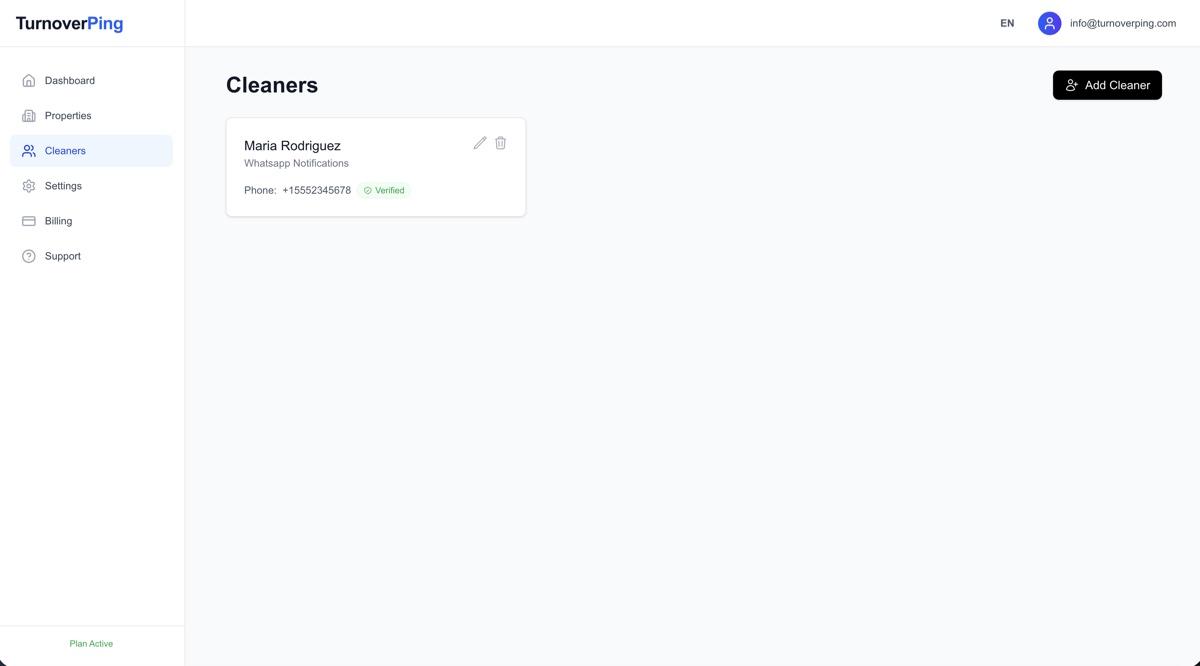
Adding a new cleaner
Steps to add a cleaner:
- 1
Go to Cleaners
Navigate to the Cleaners page from the sidebar menu.
- 2
Click "Add Cleaner"
The button is at the top of the cleaners list.
- 3
Enter cleaner's name
This name is used in notifications and your dashboard.
- 4
Choose notification method
SMS, WhatsApp, or Email (details below).
- 5
Enter contact information
Phone number (with country code) or email address.
- 6
Select language
Notifications will be sent in the cleaner's preferred language.
- 7
Save the cleaner
They'll receive a verification message to confirm their number/email.
Notification methods
Choose how each cleaner receives their job notifications. You can use different methods for different cleaners based on their preferences.
SMS (Text Message)
Standard text messages delivered to the cleaner's phone number.
Important: SMS is only available for US and Canadian phone numbers (+1). For international cleaners, use WhatsApp or Email instead.
To confirm: Cleaner replies "OK" + job code
To decline: Cleaner replies "NO" + job code
WhatsApp messages with interactive buttons. Works worldwide with any phone number.
Recommended because cleaners can tap "Accept" or "Decline" buttons directly in the message. No typing required!
To confirm: Tap "Accept" button or reply "OK"
To decline: Tap "Decline" button or reply "NO"
Emails with large "Accept" and "Decline" buttons. Good for cleaners who prefer email or don't have smartphones.
To confirm: Click green "Accept" button in email
To decline: Click red "Decline" button in email
International phone numbers
Phone numbers must include the country code. TurnoverPing supports cleaners worldwide.
Phone number format:
Always include the + sign and country code at the beginning:
United States / Canada
+1 555 123 4567United Kingdom
+44 7911 123456Italy
+39 333 1234567Mexico
+52 55 1234 5678Cleaner verification
When you add a new cleaner, they receive a verification message to confirm their contact information is correct. This ensures they can receive job notifications.
What happens during verification:
- 1. Cleaner receives a welcome message explaining TurnoverPing
- 2. They reply to confirm they can receive messages
- 3. Their status changes from "Pending" to "Verified"
- 4. They're now ready to receive job notifications
Unverified cleaners
Jobs can still be assigned to unverified cleaners, but you'll see a warning. The cleaner may not receive notifications if their contact info is incorrect.
Editing and deleting cleaners
Editing a cleaner
You can update a cleaner's name, notification method, or contact information anytime.
- 1. Go to the Cleaners page
- 2. Click on the cleaner you want to edit
- 3. Make your changes
- 4. Click "Save Changes"
Note: If you change their phone or email, they'll receive a new verification message.
Deleting a cleaner
Deleting a cleaner removes them from your account. Any jobs currently assigned to them will become "Unassigned."
This action cannot be undone, but you can always add them again later.
Frequently Asked Questions
How many cleaners can I add?
There is no limit. You can add as many cleaners as you need. All plans include unlimited cleaners.
Can one cleaner work on multiple properties?
Yes! You can assign the same cleaner as the default for multiple properties. They'll receive separate notifications for each job.
What if my cleaner doesn't respond to the verification?
You can still assign jobs to them, but you'll see a warning. Make sure their contact information is correct. You can resend the verification from their profile.
Can cleaners unsubscribe from notifications?
Yes. Cleaners can reply "STOP" to unsubscribe. You'll be notified and can resubscribe them from your dashboard if they change their mind.